

More than 50 million students in the US now use some form of digital learning platform at school — and yet most of them never get a proper introduction to the tools they’re expected to use every day. If you’ve heard the name TxMyZone and aren’t quite sure what it is, you’re not alone.
Whether you’re a student trying to figure out where your assignments live, a parent trying to keep tabs on your child’s progress, or a teacher just getting started with the platform, this guide covers everything you need to know. By the time you finish reading, you’ll know exactly what TXMyZone is, what it does, how to get started, and how to make the most of it — even if you’ve never used an online learning platform before.
What Is TxMyZone?
TxMyZone is a digital learning and student management platform used primarily within Texas school districts. Think of it as a central hub — one place where students, teachers, and parents can access coursework, track academic progress, and stay connected with what’s happening in the classroom.
Platforms like this sit at the heart of what education experts call “blended learning,” which combines traditional classroom teaching with digital tools. According to federal online learning guidelines, schools that adopt structured digital platforms see measurable improvements in student engagement and teacher efficiency.
TXMyZone fits into that picture by giving everyone involved in a student’s education one shared space. Instead of hunting across five different apps or websites, you get everything in one place.
Who Uses TXMyZone?
TXMyZone is built for three main groups of users, and each one gets a slightly different experience.
Students use it to access assignments, submit work, view grades, and communicate with teachers. It becomes part of your daily school routine pretty quickly.
Parents and guardians can log in to monitor their child’s progress, check for missing assignments, and stay informed about what’s happening in each class. This kind of visibility is genuinely useful, especially in middle and high school when kids start managing more independence.
Teachers and administrators use the platform to post lessons, grade work, track attendance, and communicate with both students and families. It cuts down on paperwork and keeps records organized in one system.
Key Features of TXMyZone
Here’s a look at the core features you’ll find inside TXMyZone. Not every school district configures the platform identically, so your specific version may vary slightly — but these are the most common tools you’ll encounter.
| Feature | What It Does | Who Uses It Most |
|---|---|---|
| Assignment Dashboard | Shows all current and upcoming work | Students |
| Grade Tracker | Displays grades in real time | Students & Parents |
| Messaging System | Allows direct communication with teachers | Students & Parents |
| Resource Library | Stores lessons, notes, and reading materials | Students & Teachers |
| Attendance Viewer | Tracks daily attendance records | Parents & Administrators |
| Progress Reports | Generates academic summaries | Parents & Teachers |
These features work together to give you a complete picture of where a student stands academically. You don’t need to wait for a report card to know how things are going.
How to Access TXMyZone for the First Time
Getting started with TXMyZone is straightforward, but there are a few things you’ll want to have ready before you begin.
Step 1: Get your login credentials. Your school or district will provide your username and temporary password. If you’re a student, this usually comes from your teacher or the school office. Parents often receive their credentials via email when they enroll their child.
Step 2: Go to the correct login portal. Your school district will have a specific URL for TXMyZone — it’s not a single universal site. Ask your school for the exact web address, or check any welcome emails or orientation materials you received.
Step 3: Log in and change your password. On your first login, you’ll likely be prompted to set a new password. Choose something you’ll remember but that isn’t easy to guess — a mix of letters, numbers, and a symbol works well.
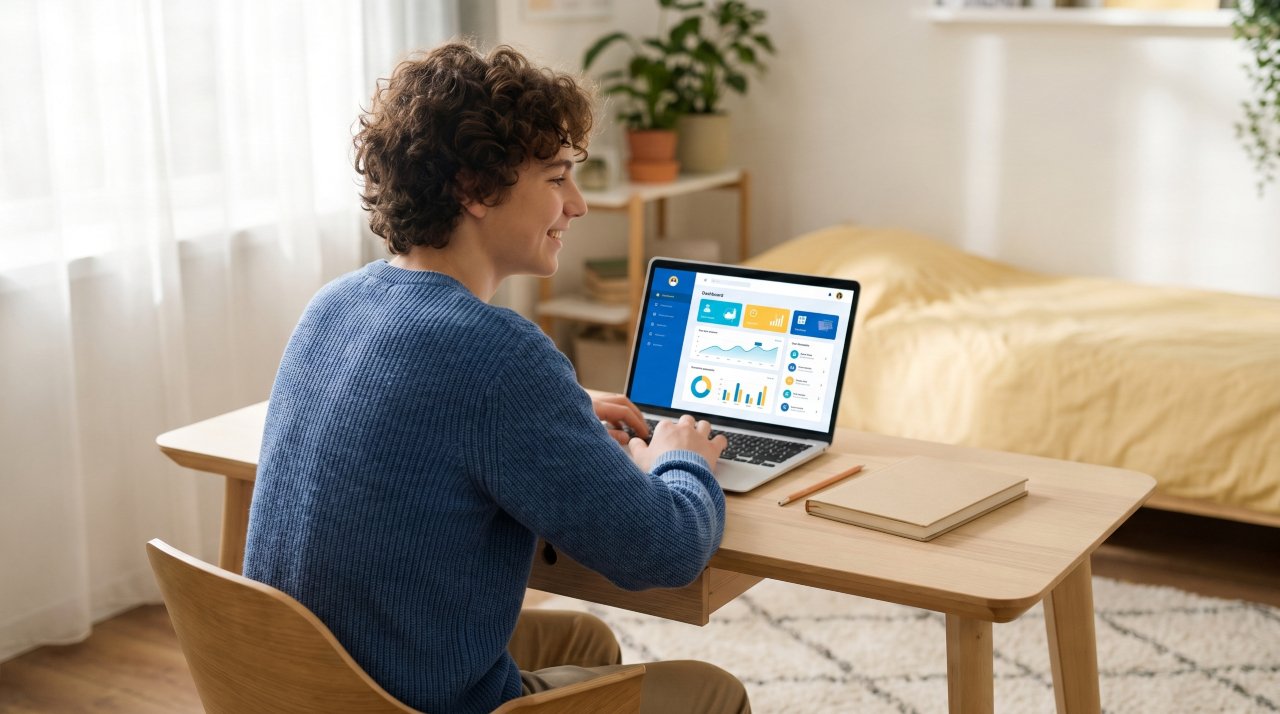
Step 4: Explore the dashboard. Spend five minutes clicking through the main sections before you need to use it for something urgent. Getting familiar with where things live saves you stress later.
If you run into trouble during your first login, don’t panic. Most school districts have a help desk or IT support contact. Your teacher or school office can also point you in the right direction.
How TXMyZone Fits Into Modern Learning
TXMyZone doesn’t exist in a vacuum. It’s part of a much bigger shift in how American schools approach education — one that’s been building for over a decade.
The International Society for Technology in Education has published clear standards for how students should engage with technology as part of their learning. Platforms like TXMyZone are designed to support those standards by making learning more accessible, trackable, and responsive to individual student needs.
The key idea here is that digital tools work best when they reduce friction — when they make it easier to learn, not harder. If you’re finding TXMyZone confusing at first, that’s completely normal. Every new tool has a learning curve. Most students say they feel comfortable with the platform within one to two weeks of regular use.
Common Login and Access Problems (And How to Fix Them)
Let’s be honest — tech problems are frustrating. Here are the most common issues people run into with TXMyZone and simple ways to fix them.
“I forgot my password.”
Use the “Forgot Password” link on the login page. You’ll need access to the email address associated with your account. If that doesn’t work, contact your school’s IT department directly.
“My login credentials don’t work.”
Double-check that you’re on the correct district-specific login page. A common mistake is going to a generic URL instead of your district’s version. Also check for typos — usernames are often case-sensitive.
“The page won’t load.”
Try a different web browser (Chrome and Firefox tend to work best with most school platforms). Clear your browser’s cache and cookies, then try again.
“I can see the dashboard but some features are missing.”
Your school administrator controls which features are active for your account. If something seems missing, ask your teacher whether that feature is enabled at your school.
“My child’s account shows incorrect grades.”
Grades update when teachers enter them manually. If something looks wrong, contact the teacher directly through the platform’s messaging system or via email.
Tips for Getting the Most Out of TXMyZone
Knowing how to log in is just the start. Getting real value from TXMyZone means building a few small habits around how you use it.
Check it every day. Teachers post updates, new assignments, and important announcements regularly. Logging in daily — even for just a few minutes — keeps you from getting blindsided by deadlines.
Turn on notifications. Most school platforms allow email or text notifications for new assignments or messages. Turn these on so you don’t have to remember to check manually.
Use the grade tracker proactively. Don’t wait until the end of the semester to look at your grades. Checking weekly gives you time to ask for help or make up work before it’s too late.
Communicate through the platform. When you need to ask a teacher something, use the built-in messaging system rather than a personal email. It keeps everything in one place and creates a record of your conversations.
Involve parents early. If you’re a student, showing your parents how to access their account early in the school year saves awkward conversations later. When parents are involved from the start, research shows students tend to perform better. The National Education Association notes that parent engagement is one of the strongest predictors of student success.
Staying Safe on TXMyZone
Because TXMyZone is a school-managed platform, it already has built-in privacy protections. But there are still smart habits you should follow.
Never share your password with anyone — not even a friend who says they just need to check something quickly. Your account is tied to your grades and your personal information.
Be thoughtful about what you write in the messaging system. It’s a school tool, monitored by administrators, and your messages may be reviewed if there’s ever a concern. Treat it like talking to a teacher in person.
If you’re a parent setting up your account, use a secure, unique password that you don’t use for other websites. Digital safety tips for students from Common Sense Media are worth reviewing — many of the same rules apply to parent accounts too.
Honest Limitations of TXMyZone
No platform is perfect, and TXMyZone is no exception. Being upfront about the limitations helps you set realistic expectations.
It depends heavily on your school’s setup. The platform’s usefulness varies a lot depending on how your district has configured it and how consistently teachers use it. A school where teachers post everything on TXMyZone is very different from one where it’s barely used.
The mobile experience isn’t always smooth. Some users report that the mobile version of the platform is less intuitive than the desktop version. If you’re primarily using a phone, you might run into occasional display or navigation issues.
It requires reliable internet access. TXMyZone is an online-only tool. If you don’t have consistent access to the internet at home, this can create real barriers. Many districts offer device lending programs or hotspots for students who need them — ask your school about what’s available.
Updates and changes happen without warning. School platforms are often updated during the school year. Features may move or change slightly, which can be disorienting if you’ve just gotten comfortable with where everything is.
FAQ: Your TXMyZone Questions Answered
What is TXMyZone used for?
TXMyZone is an online learning and student management platform used by Texas school districts. Students use it to access assignments and track grades, parents use it to monitor academic progress, and teachers use it to manage coursework and communicate with families.
How do I log in to TXMyZone?
You’ll need the specific login URL provided by your school district, along with the username and password your school gave you. If you’ve never logged in before, use the temporary credentials from your school and reset your password on your first visit.
Is TXMyZone free to use?
TXMyZone is provided through your school district, so there’s no direct cost to students or parents. The district pays for the platform as part of its educational technology budget.
What do I do if I can’t access my TXMyZone account?
Start by using the “Forgot Password” option on the login page. If that doesn’t resolve the issue, contact your school’s IT department or front office. They can reset your credentials or check whether your account is active.
Can parents see everything on TXMyZone?
Parents with active accounts can typically see grades, attendance records, assignment lists, and progress reports. They generally can’t see private messages between students and teachers unless the school has configured it that way. The exact visibility depends on how your district has set up parent access.
Does TXMyZone work on a phone or tablet?
Yes, TXMyZone can be accessed through a mobile browser on phones and tablets. Some users find the desktop experience more feature-complete, but the mobile version handles the core functions — checking grades, viewing assignments, and reading messages — reasonably well.
Your Next Step
Here’s the single most important thing to take away from this guide: TXMyZone works best when you use it consistently, not occasionally.
The students and parents who get the most out of platforms like this are the ones who make it a daily habit — five minutes in the morning, a quick grade check on Sunday evening. Small, regular check-ins add up to real awareness of what’s happening academically.
If you haven’t logged in yet, do it today. Get your credentials from your school if you don’t have them, find your district’s specific login page, and spend 10 minutes clicking through the dashboard before you need it for something urgent. That small investment of time will save you stress when deadlines start piling up.
And if you’re still exploring which digital learning tools work best for your needs, keep reading here on The Pocket Journal — we cover the platforms, strategies, and tools that make learning online a little less overwhelming.